

Sometimes you want to get a specific post as the first result for a certain search, but Relevanssi doesn’t return the right post as the first result by itself for some reason. Relevanssi Premium has a tool for these situations: pinning.
Pinning allows you to specify keywords for each post, and whenever that keyword is used in the search, the post will appear as the first result. If multiple posts are pinned for the same keyword, they will appear in their natural order.
It’s also possible to pin a post for all searches it appears in. Whenever the post is included in the search results, it comes first.
How to use pinning
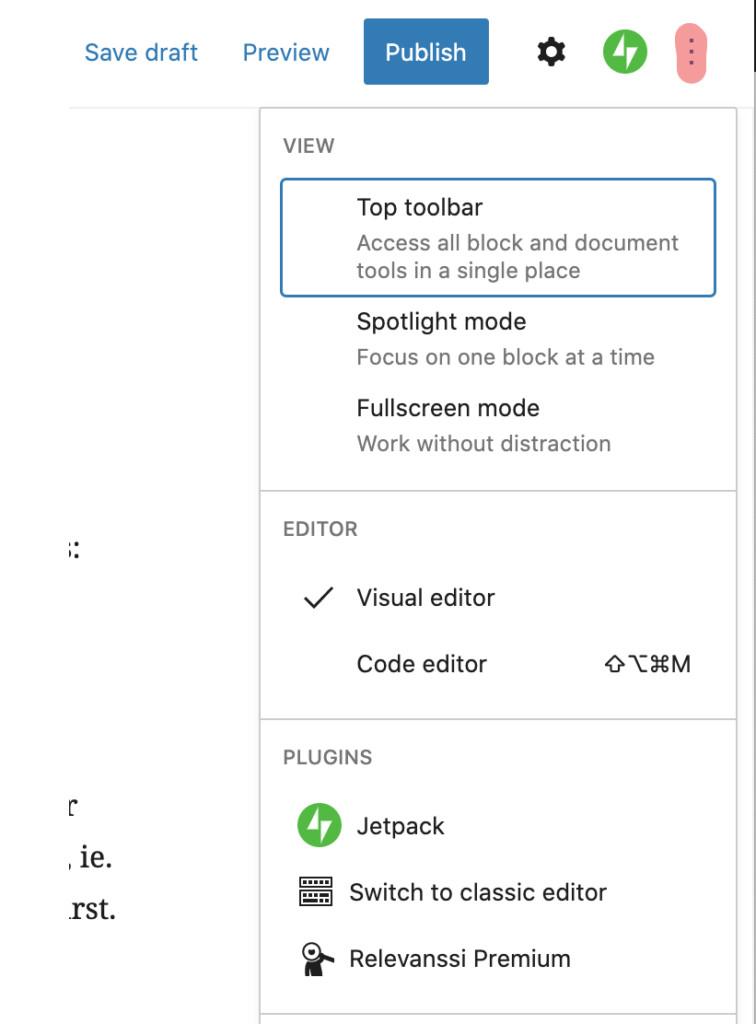
Pinning is done from the post editor. Relevanssi Premium adds Relevanssi controls to all post types that are indexed. In the block editor, the Relevanssi controls are somewhat hidden by default but can be found from the “three dots” menu on the top right:
If you want easier access to the Relevanssi controls, you can add them to the toolbar from the star button:
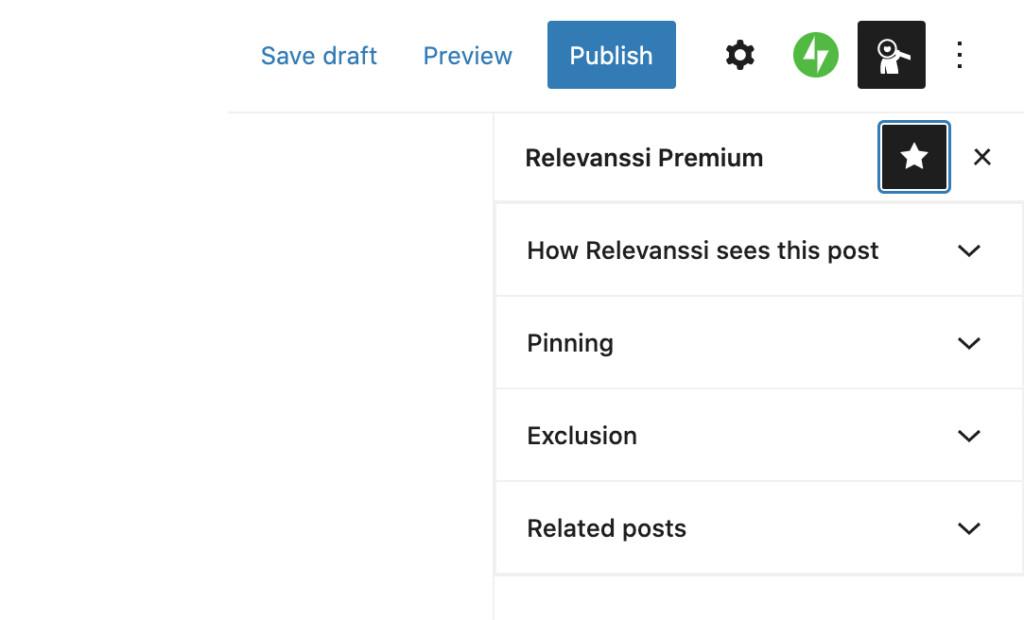
The pinning settings can be found under “Pinning”. The “Pin this post for all searches it appears in” checkbox pins the post for all keywords; it’s practically equivalent to adding all words in the post to the keyword field.
In the classic editor, the Relevanssi Premium controls are generally always visible, but if they’re not, you can enable them from the “Display options” settings on the post editor page.
Pinning with weights
Relevanssi Premium 2.21.0 introduces a new feature: you can now add weights to pinned phrases. Previously, the order of the pinned posts was based on the natural order of the posts. Now you can control it with weights.
Let’s assume you have two posts you want to pin for the keyword “lentil”. You want one of them to be first, so you give it more weight. You pin that post for “lentil (10)”. The other post you pin for “lentil”, which means the default weight of 1. The post with the weight 10 will always be first when someone searches for “lentil”, and the other post will be second.
What if you have a post that is pinned for “lentil soup”? If someone searches for “lentil soup”, the posts pinned for “lentil” will be on top of that search as well because the words in the search phrase are considered individually: all posts pinned for “lentil soup”, “lentil” or “soup” will be on top of the results.
Relevanssi does prioritize the length of the pinned phrase. Any posts pinned on “lentil soup” will be before posts pinned on “lentil”, no matter what the weights are.
2 Comments. Leave new
So WooCommerce products use the “classic editor” still for some reason. The “Screen Options” in a product doesn’t have a Relevanssi option, and I can’t find the Pinning feature anywhere for products. Any help on how to activate the pinning feature on Products for WooCommerce would be RAD! thanks. 🙂
Josh, the “Relevanssi” metabox should be in the “Screen Options” list, but only if the
productpost type is enabled in the indexing settings and if the user has high enough capabilities. This used to require “admin” level access; it was changed to “editor” in 2.15.3, but authors still can’t see it. If you want authors to see the metabox, you can use therelevanssi_sidebar_capabilityfilter hook to adjust the minimum capability topublish_poststo allow authors to see it.